Free After Effects plugins are genuinely worth your time, but most roundups mix truly free tools with paid trials, discontinued products, and freemium bait-and-switch installs. This list focuses on plugins where the free tier does real work, not just unlocks a watermarked preview. Here you’ll find nine options that cover transitions, easing, VFX compositing, lens effects, and web export, each picked for what it actually adds to a real motion graphics workflow.
Every plugin here runs in current versions of After Effects (2023 and newer), has no hidden install requirements, and is available directly from the developer. Where a tool is freemium, the free tier is clearly described so you know exactly what you’re getting without creating an account first.
Here are the 9 best free After Effects plugins:
| Plugin | Best For | Pricing |
|---|---|---|
| Spotlight FX | Transitions, overlays, titles, workflow scripts | Freemium |
| Animation Composer | Motion preset library | Freemium |
| Quick Chromatic Aberration | RGB lens distortion | Free |
| UnMult | Removing black from light effects | Free |
| Displacer Pro | GPU displacement for transitions | Free |
| FXAA | Anti-aliasing on motion trails | Free |
| Motion Bro | Preset marketplace browser | Freemium |
| Ease and Wizz | Advanced keyframe easing | Freemium |
| Bodymovin | Lottie JSON export | Free |
1. Spotlight FX
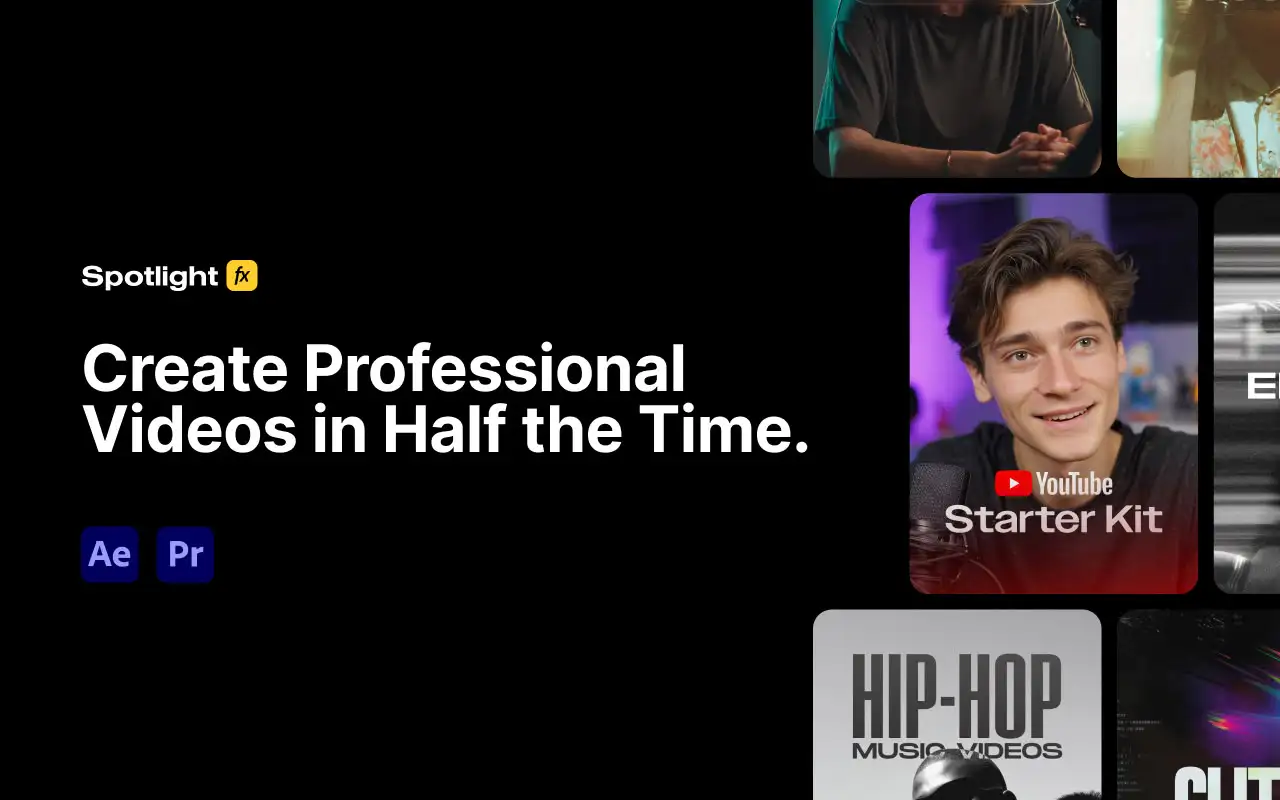
Spotlight FX solves a specific problem: you need professional-looking transitions, lower thirds, overlays, and text animations without spending hours building them from scratch or hunting across five different websites. The free tier gives you 39 templates plus all 10+ workflow scripts, which means you get genuine production value without spending anything.
The cloud-based browser docks inside After Effects, so you’re not jumping between applications. Double-click any asset and it lands in your timeline at the playhead position, ready to customize. The workflow scripts that come free for every user are worth the install alone. Anchor Point Mover, Keyframe Easing, Fit to Comp, Blending Modes, and Looper cover the tasks that slow down daily work in AE. These are the kinds of micro-utilities you’d normally build yourself or buy separately.
The paid library expands to 2,300+ assets across transitions, VHS effects, film grain overlays, glitch elements, particles, and genre-specific collections like YouTube Starter Kit and Found Footage Horror. If your work regularly needs those categories, the $14/month yearly plan or $299 lifetime option make sense. But even staying on the free tier, Spotlight FX is one of the more practical installs on this list.
Compatibility: After Effects 2020 and later, macOS and Windows. Requires an internet connection to browse the asset library.
Key features:
- 39 free templates across transitions, titles, overlays, and elements
- 10+ free workflow scripts including Keyframe Easing, Looper, Anchor Point Mover, and Fit to Comp
- Cloud-based browser docked inside After Effects
- Double-click to place any asset at current playhead
- Works in both Premiere Pro and After Effects
Pros/Cons:
- Pros: Generous free tier with real workflow scripts, no watermarks on free assets, covers a wide range of categories
- Cons: Requires internet connection, full library needs a paid subscription
Best for: Motion designers who want a one-stop free toolkit covering both assets and workflow utilities
Pricing: Freemium. Free tier: 39 templates + all workflow scripts. Paid: $29/mo, $14/mo yearly, $299 lifetime.
2. Animation Composer
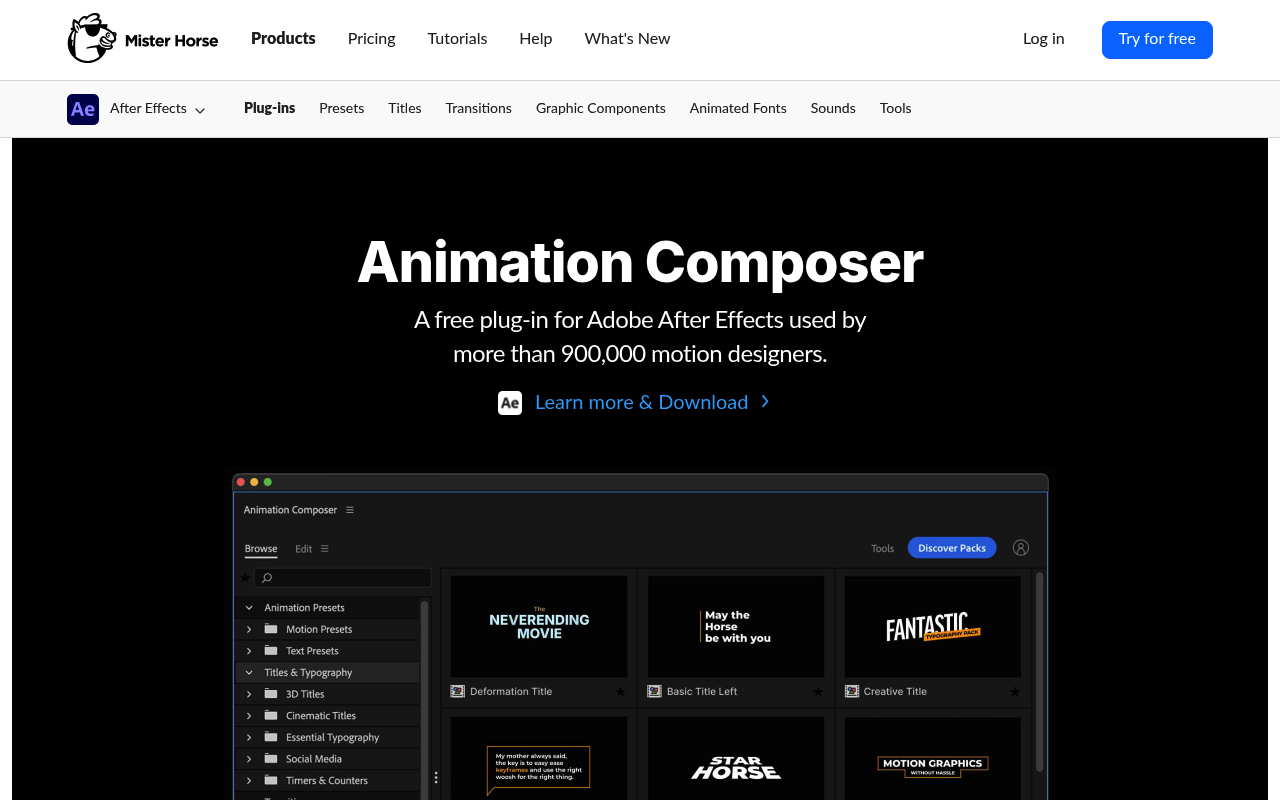
Anyone who’s spent 20 minutes tweaking easing curves on a simple lower third knows the frustration. Animation Composer addresses this by giving you a drag-and-drop preset library with 100+ motion graphics animations, transitions, and sound effects that drop directly onto your layers.
The free tier from Mister Horse is substantial. You get a working preset library that covers text animations, transitions, and basic motion graphics elements, enough to genuinely speed up production work rather than just tease a paid upgrade. The panel docks inside After Effects and lets you preview animations before applying them, which saves the back-and-forth of applying, undoing, and trying the next option.
The real limitation is that the included free presets are relatively conservative in style. If you need anything specialized, you’re looking at add-on packs, most of which are paid subscriptions. But as a baseline productivity tool for standard motion work, Animation Composer earns its place. It’s particularly useful if you’re newer to After Effects and want to learn by deconstructing how professional presets are built.
Works on AE 2021 and later. Performance impact is minimal since presets bake to standard AE keyframes.
Key features:
- 100+ free drag-and-drop motion presets
- Dockable panel with live preview before applying
- Transition, text animation, and SFX categories
- Presets bake to native AE keyframes, fully editable after applying
- Expands with paid add-on packs from Mister Horse
Pros/Cons:
- Pros: Genuinely useful free tier, previews before applying, fully editable keyframe output
- Cons: Free preset selection is stylistically limited, more interesting content requires paid add-ons
Best for: Beginners learning motion design and working professionals who want a quick-start preset library
Pricing: Freemium: core plugin is free, add-on packs are subscription-based
3. Quick Chromatic Aberration
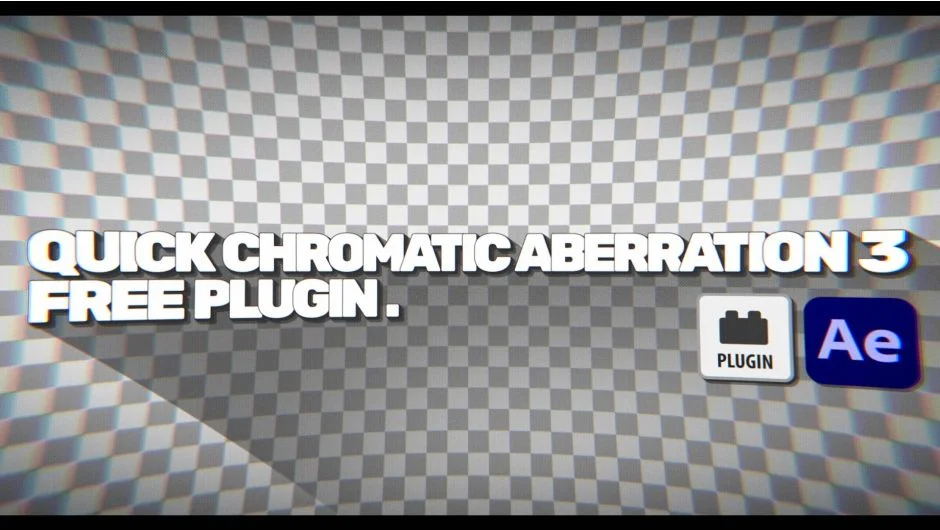
Chromatic aberration is one of those effects that looks fake when overdone and invisible when done well. Quick Chromatic Aberration gives you GPU-accelerated RGB channel separation with per-channel controls and an optional lens distortion component, all at no cost.
The practical use case here is adding optical realism to clean CG renders or motion graphics that look too perfect. A slight CA pass on a title card, a branded lower third, or a product logo animation makes it read more like camera-captured footage. You can also push it hard for glitch aesthetics; the per-channel offset controls let you animate the separation independently on R, G, and B for animated glitch sequences.
GPU acceleration means it’s real-time or near real-time on most hardware for 1080p work. At 4K on complex comps, expect a brief preview delay. There’s no UI beyond the standard AE effects panel sliders, which keeps things simple. Quick Chromatic Aberration is completely free with no registration required: download, install, and it appears in your effects panel immediately.
Compatible with AE CS6 through current. Works on macOS and Windows.
Key features:
- Independent R, G, B channel offset controls
- Optional radial lens distortion
- GPU-accelerated rendering
- Standard AE effects panel integration
- No registration or account required
Pros/Cons:
- Pros: Completely free, GPU-accelerated, instant install, no UI bloat
- Cons: Limited controls compared to paid alternatives, no presets
Best for: Adding optical realism to CG renders or creating animated glitch sequences
Pricing: Free
4. UnMult
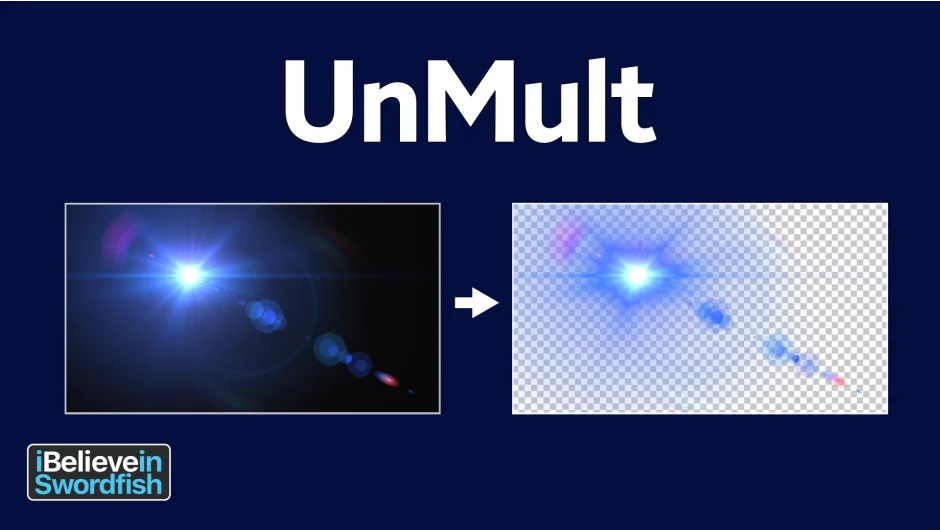
If you’ve ever dropped a Video Copilot lens flare or an action stock element onto footage and struggled to remove the black background with Screen or Add blend modes alone, UnMult solves this properly. It generates an alpha channel from a lighting effect’s black background, converting it to a transparent layer without the color contamination that blend mode workarounds introduce.
The specific problem it addresses: Screen mode on lens flares lifts blacks slightly, and Add mode blows out highlights differently than a clean alpha would. UnMult’s algorithm reads luminance values and creates a proper matte, so your lens flare or light element composites cleanly over any background color, including white and other light backgrounds where blend modes completely fall apart.
Usage is one-click. Apply it to the layer with the black background, and you’re done. No parameters, no adjustment. The simplicity is the point. UnMult has been around for years and remains one of those plugins that every After Effects user should have installed.
Free download, no registration. Compatible with AE CS6 through current versions on both platforms.
Key features:
- One-click alpha channel generation from black backgrounds
- Proper luminance-based matte creation
- No parameters: install and apply
- Works on any layer type
Pros/Cons:
- Pros: Completely free, solves a specific problem better than any blend mode workaround, instant application
- Cons: Single-purpose, only useful for this one task
Best for: Anyone compositing lens flares, light leaks, or stock VFX elements over varied backgrounds
Pricing: Free
5. Displacer Pro
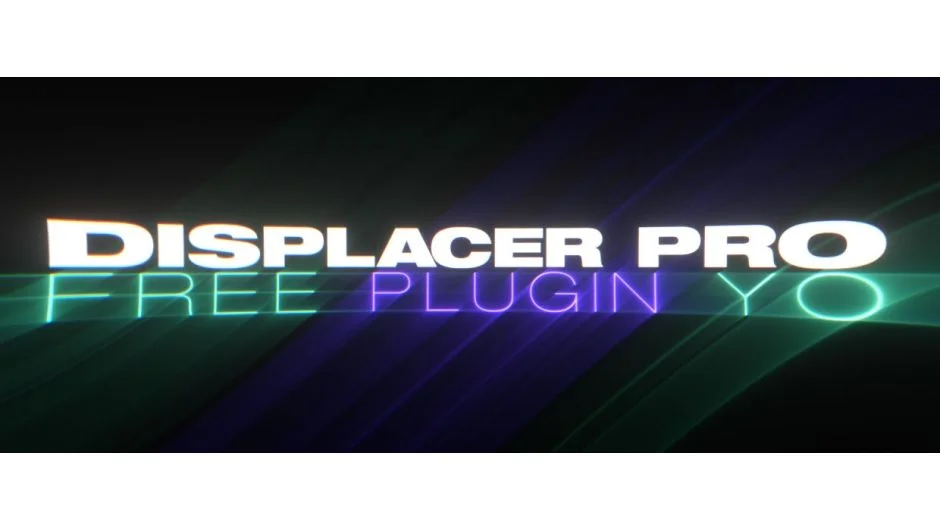
After Effects’ built-in Displacement Map effect moves pixels in position only. Displacer Pro extends this significantly by adding rotation and scale displacement: pixels can be rotated and scaled by a displacement source, not just repositioned. This creates a dramatically wider range of distortion effects from a single plugin.
The most common use case is transitions. Drive a warp or scale displacement with a gradient or noise layer, animate the intensity, and you have a transition style that no amount of built-in effect stacking can replicate cleanly. It’s also useful for distortion effects on titles, heat shimmer on footage, and abstract VFX work where you need the distortion to feel volumetric rather than flat.
GPU acceleration keeps it performant on most hardware. For transitions, preview times are typically under a second at 1080p. The free version is fully functional with no feature restrictions; this isn’t a trial. Displacer Pro is one of the better examples of a developer offering a genuinely capable free plugin.
Compatible with AE CC 2019 and later. macOS and Windows.
Key features:
- Position, rotation, and scale displacement from a source layer
- GPU-accelerated rendering
- Works with any layer as the displacement source
- Full feature set in the free version
Pros/Cons:
- Pros: Free with no restrictions, fills a genuine gap in AE’s native displacement tools, GPU-accelerated
- Cons: No presets, requires understanding displacement map concepts to use effectively
Best for: Building custom transitions and distortion effects that go beyond standard AE displacement
Pricing: Free
6. FXAA
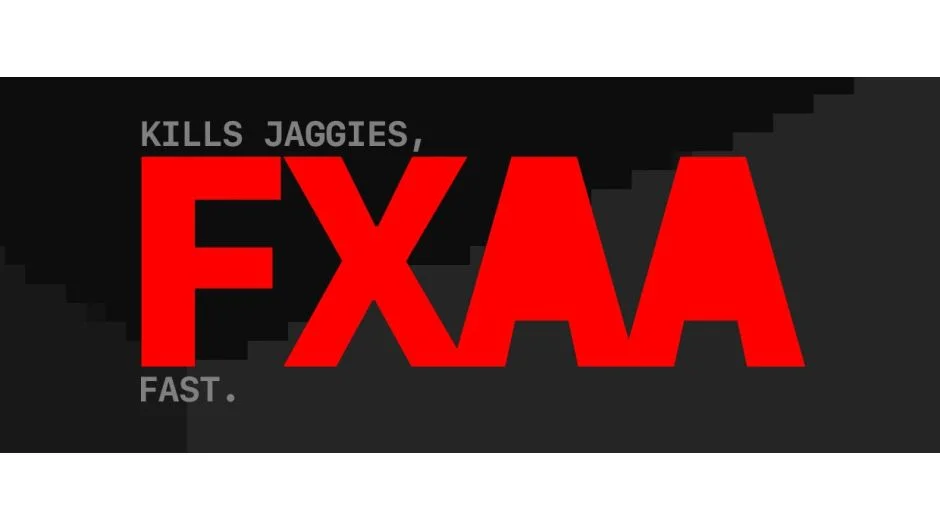
Motion trails, speedlines, and fine graphic elements in After Effects render with jagged aliased edges, particularly on diagonal lines and curves. FXAA applies NVIDIA’s Fast Approximate Anti-Aliasing algorithm directly in the effects stack, smoothing these edges without the render time hit of AE’s full-quality anti-aliasing.
The clearest use case is motion graphics with thin animated lines, geometric shapes, or text that shows stairstepping during fast movement. Apply FXAA as an adjustment layer above your comp or directly on the affected layer, and aliasing resolves immediately. It’s lighter than adding a Gaussian blur and smarter than most manual smoothing approaches because it targets edge pixels specifically rather than blurring the whole image.
One honest note: FXAA introduces slight softening as a side effect of the algorithm. On footage this is imperceptible. On very fine typographic elements, you may notice a slight loss of crispness. Apply it surgically rather than as a blanket adjustment across a whole comp.
FXAA is completely free and has been maintained through current AE versions. macOS and Windows.
Key features:
- NVIDIA FXAA algorithm in AE effects stack
- Works as adjustment layer or per-layer effect
- Targets edge pixels without full-image blurring
- No parameters to configure: applies immediately
Pros/Cons:
- Pros: Free, effective on diagonal edges and curves, minimal render overhead
- Cons: Introduces slight softening, not ideal on typography or very sharp fine details
Best for: Smoothing aliased edges on motion graphics shapes, trails, and geometric animations
Pricing: Free
7. Motion Bro
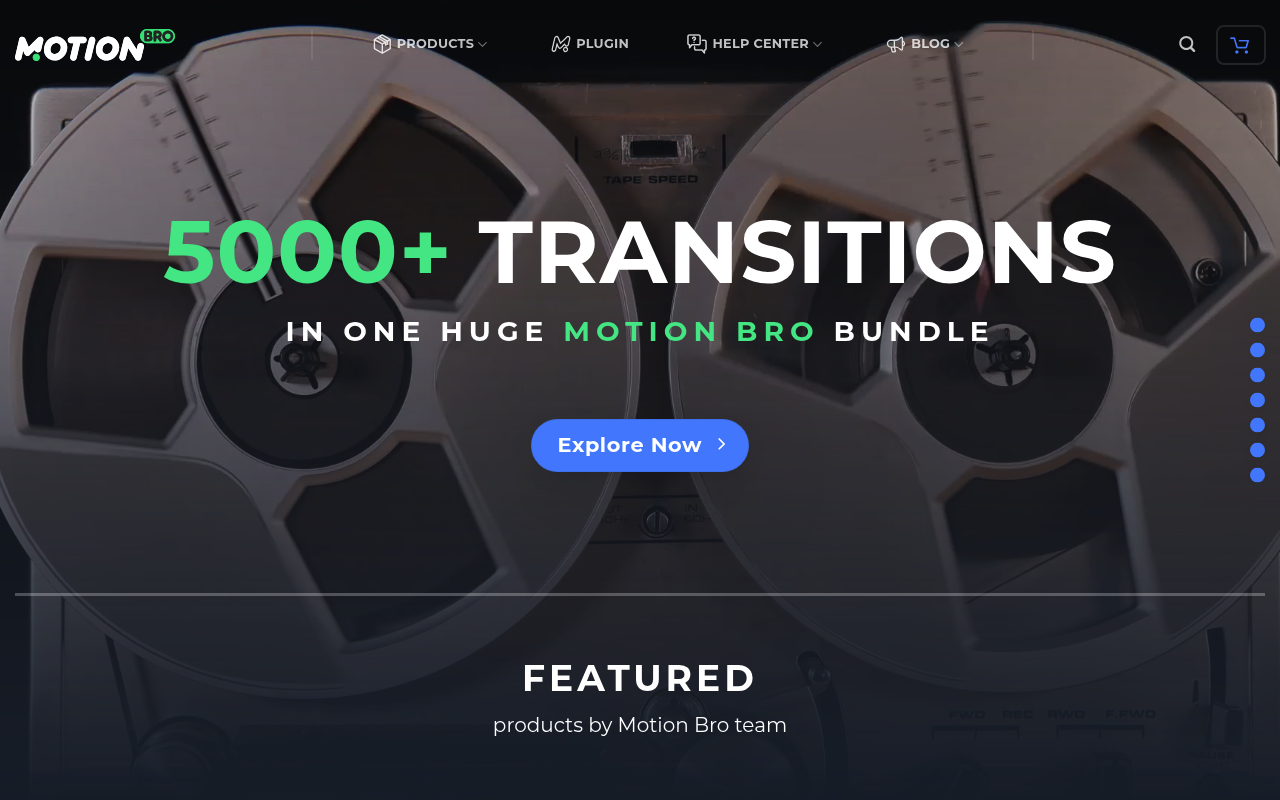
Motion Bro functions as a marketplace browser that lives inside After Effects and Premiere Pro, giving you access to thousands of transitions, presets, lower thirds, and sound effects from third-party developers. Think of it as a package manager for motion graphics assets rather than a single plugin.
The free version installs a functional browser panel and includes access to free asset packs from the Motion Bro marketplace. Several developers offer genuinely useful free collections through the platform, including transitions and lower thirds that hold up in professional work. The interface handles importing and organizing presets far better than manually managing AEP files in folders.
The main limitation is that the most polished asset packs require purchasing from individual developers through the marketplace. What you get free depends on what developers are offering at any given time. If you’re primarily after the browser interface and a curated set of free community packs, Motion Bro delivers that. If you want a specific high-end pack, check the marketplace pricing before installing.
Works on AE CC 2019 and later, macOS and Windows.
Key features:
- Dockable browser panel inside AE and Premiere Pro
- Access to 5,000+ marketplace assets from third-party developers
- Free asset packs available through the platform
- Includes free sound effects pack
- Handles preset organization and import automatically
Pros/Cons:
- Pros: Well-designed browser, genuine free content available, covers both AE and Premiere
- Cons: Best content requires paid purchases from marketplace, free tier depends on current developer promotions
Best for: Motion designers who want a single organized interface for managing multiple preset libraries
Pricing: Freemium: browser is free, premium asset packs purchased separately
8. Ease and Wizz
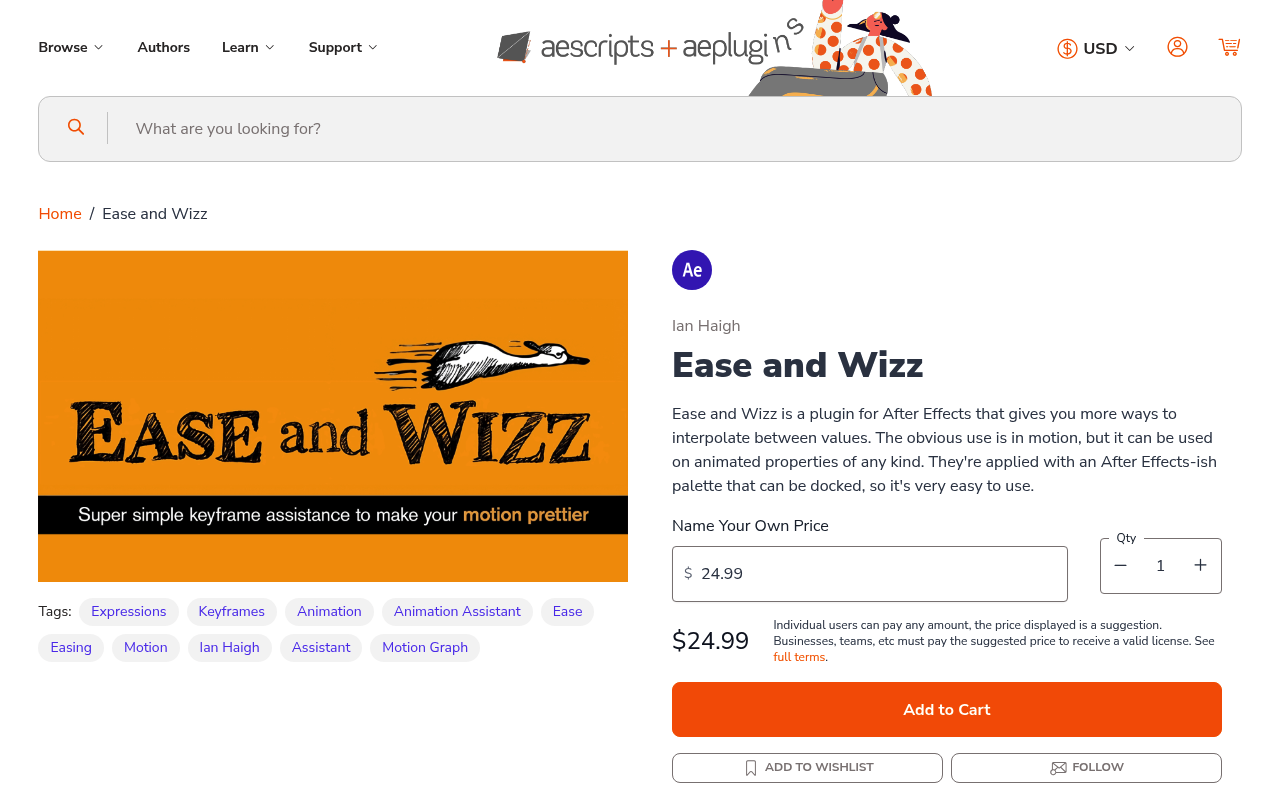
After Effects’ native Easy Ease covers basic easing, but if you want Expo, Back, Bounce, Elastic, or Sine curves, you’re either writing expressions yourself or spending time in the graph editor. Ease and Wizz adds these easing equations as one-click applications to any selected keyframes, with the results baked as standard AE keyframes, no expressions required.
The workflow is simple: select your keyframes, pick a curve type and direction (In, Out, or In+Out), apply. The plugin creates intermediate keyframes that approximate the easing curve. On complex animations with many properties, this replaces what could be 30 minutes of graph editor work with a few seconds.
The pay-what-you-want model means you can download it for free. If you find yourself using it daily (and you will), paying something is reasonable. The author has maintained it for years across multiple AE versions. For anyone new to motion design, Ease and Wizz is worth installing before anything else on this list. Easing is the foundation of everything that looks good.
Compatible with AE CS5.5 through current. macOS and Windows.
Key features:
- Expo, Sine, Quad, Cubic, Quart, Quint, Back, Bounce, and Elastic curves
- In, Out, and In+Out directions for each curve type
- Results baked to native AE keyframes, no expressions
- Pay-what-you-want pricing
Pros/Cons:
- Pros: Available for free, covers easing equations unavailable in native AE, bakes to clean keyframes
- Cons: Baked keyframe approach creates many intermediate keys, which can clutter the timeline on complex animations
Best for: Any motion designer who wants access to advanced easing curves without writing expressions
Pricing: Freemium: pay what you want (minimum $0)
9. Bodymovin
If you produce any animation that ends up on a website, in an app, or displayed in any web context, Bodymovin is not optional. It exports After Effects compositions to the Lottie JSON format, which plays back natively in browsers and mobile apps at a fraction of the file size of a video.
The export process handles most standard AE animation features: shape layers, masks, trim paths, text animations, position and scale keyframes, and many effects. Complex plugin-dependent effects won’t export, but clean motion graphics built on native AE tools typically export without major issues. Test your composition early in the process rather than discovering Lottie compatibility problems at delivery.
Bodymovin is maintained by Airbnb and the LottieFiles team, which means consistent updates aligned with the Lottie spec. The companion LottieFiles plugin also available for AE integrates preview and device testing directly in the workflow. For UI animators and web motion designers, Bodymovin is the most essential free install on this list: there’s no practical alternative for Lottie export.
Compatible with AE CC 2019 and later. macOS and Windows.
Key features:
- Exports AE compositions to Lottie JSON format
- Supports shape layers, masks, trim paths, and keyframe animation
- Playback-ready output for web and mobile
- Actively maintained with Lottie spec updates
- Completely free
Pros/Cons:
- Pros: Free, industry-standard Lottie exporter, actively maintained, lightweight JSON output
- Cons: Plugin-dependent effects and complex expressions may not export correctly; requires native AE workflow discipline
Best for: Web and app motion designers who need Lottie-compatible animation output
Pricing: Free
How we evaluated these plugins
Every plugin on this list was evaluated against five criteria. First, the free tier had to provide genuine utility, not just a watermarked preview or a limited-time trial. Second, compatibility had to include After Effects 2022 or newer, running on both macOS and Windows unless explicitly noted otherwise. Third, we looked at update frequency: plugins that haven’t been updated in several years and show signs of version incompatibility were excluded regardless of how well-known they are. Fourth, performance impact was considered: a free plugin that tanks your preview render speed isn’t a good trade. Finally, we weighed community support and documentation quality, since free plugins with no documentation create more problems than they solve.
Several well-known free tools were excluded from this list because they are discontinued, no longer available for download, or only work on older AE versions. This list reflects what’s actually installable and functional in a current production environment.
What to look for in free After Effects plugins
The most important question before installing any free plugin is whether it’s maintained. An unmaintained plugin sitting in your plugins folder is a potential source of crashes, especially after AE version updates. Check the developer’s site for a recent update date before committing to a workflow that depends on it.
Compatibility with your AE version matters more than most users realize. After Effects ships major updates annually, and plugins built against older SDK versions can introduce instability even when they appear to function. Before installing, confirm the plugin lists your current AE version explicitly.
Performance during preview is where free plugins often cut corners. GPU-accelerated options like Displacer Pro and Quick Chromatic Aberration preview in real time. Script-based tools like Ease and Wizz have no render impact since they bake to keyframes. Where performance matters most is effects-based plugins applied to adjustment layers above complex comps; always test preview speed before depending on something in a tight-deadline project.
Freemium vs. genuinely free is worth understanding upfront. Spotlight FX and Motion Bro offer substantive free tiers that do real work. Others gate nearly everything behind a paywall and present the free tier as a demo. Reading the plugin description carefully before install saves frustration. For a broader view of what’s available across all categories, the after-effects-workflow-productivity-plugins collection covers both free and paid productivity tools organized by use case.
Finally, workflow integration matters: a plugin that requires leaving After Effects, a separate application, or a cloud account for basic functionality adds friction. The strongest free tools on this list either dock natively in AE or install directly into the effects panel with no additional steps.
Frequently Asked Questions
Are free After Effects plugins safe to install?
Yes, provided you download from reputable sources. The plugins on this list are all available from aescripts.com or the developers’ own sites. Avoid third-party aggregators that redistribute plugins without authorization; these sometimes bundle malware or outdated versions. Stick to official download links.
Do free plugins work the same as paid plugins in After Effects?
Most free plugins work identically to their paid counterparts at the functionality level. The difference is typically in feature depth, preset count, or GPU optimization. A free plugin like Displacer Pro is fully functional with no restrictions. Freemium tools like Spotlight FX have a real free tier alongside paid tiers.
Will free plugins slow down After Effects?
It depends on the plugin. Effects-based plugins like FXAA and Quick Chromatic Aberration render on the GPU and have minimal impact on preview speed. Script-based tools like Ease and Wizz have no render impact at all since they bake to standard keyframes. The safest approach is testing preview speed in a representative comp before committing a plugin to a project.
What’s the difference between a free plugin and a freemium plugin?
A free plugin has no paid tier: the full feature set is available at no cost. Bodymovin and FXAA are examples. A freemium plugin has a functional free tier plus a paid upgrade path. Spotlight FX gives you 39 templates and all workflow scripts for free, with 2,300+ additional assets behind a paid subscription. Both can be genuinely useful depending on what the free tier covers.
Which free After Effects plugin should I install first?
If you work in motion design broadly, Ease and Wizz is the most universally applicable first install. Good easing is foundational to everything that looks polished in After Effects, and Ease and Wizz gives you curve options that would otherwise require manual expression work. Install Spotlight FX alongside it if you want a broader toolkit with assets and workflow scripts.
Do free plugins work with the latest version of After Effects?
The plugins on this list were verified as compatible with After Effects 2023 and 2024. Compatibility can change after major AE updates, so check the developer’s page for update notes if you’re running a version released after early 2025. Discontinued plugins like Limber Lite are excluded from this list for this reason.
Can I use free plugins in commercial work?
Yes for the plugins on this list: all have licenses that permit commercial use. Some freemium tools may restrict commercial use on the free tier (check the individual license if this matters for your project), but none of the fully free options here have commercial restrictions.
Is Video Copilot’s Saber plugin still a good free option?
Saber remains functional for energy beam and light effects, though Video Copilot hasn’t issued major updates to keep pace with recent AE versions. It’s not in this list because compatibility with AE 2024+ has been inconsistent for some users. Check the Video Copilot forums for current status before depending on it in production.
Conclusion
For most workflows, the combination of Ease and Wizz for easing, Spotlight FX for assets and workflow scripts, and Bodymovin for Lottie export covers the ground where free plugins have the highest practical impact. Add Quick Chromatic Aberration and UnMult if your work involves compositing or VFX, and Displacer Pro if you build custom transitions.
If you want to go deeper on specific categories, the after-effects-free-plugins collection covers additional free and freemium options organized by use case, and after-effects-motion-graphics-plugins expands into the paid tools worth considering when free options no longer cover what you need.